DINE-IN
Dine-in and split bills
Move a guest to another table, split the bill by item or evenly, and send every course straight to the kitchen screen.
ONNO works on the laptop, tablet, or computer you already have. No special hardware, nothing to install — sign in and start taking orders.
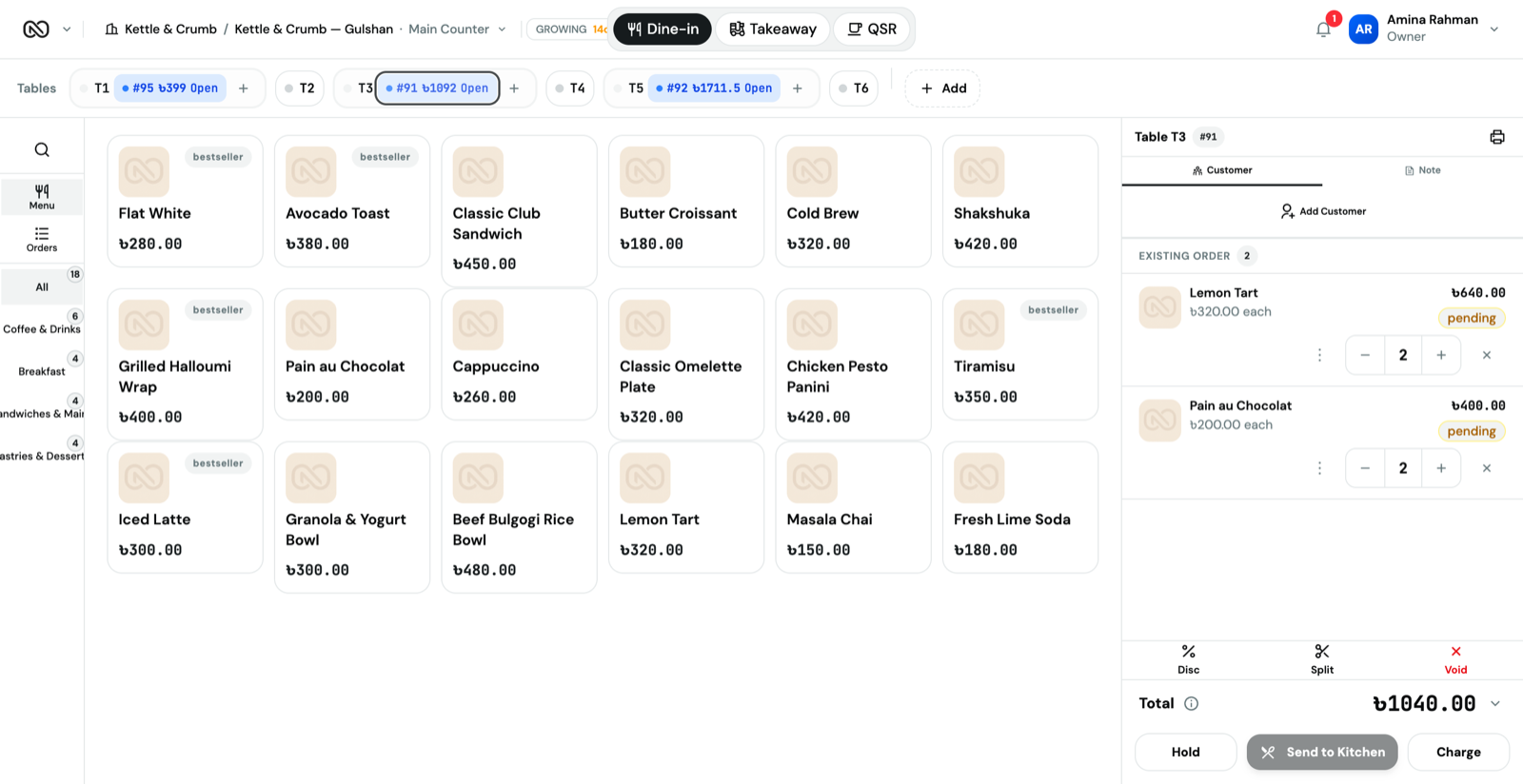
ONNO is a website, not a machine. Open it in Chrome, Safari, or Edge on whatever you already have at the counter, and start taking orders.
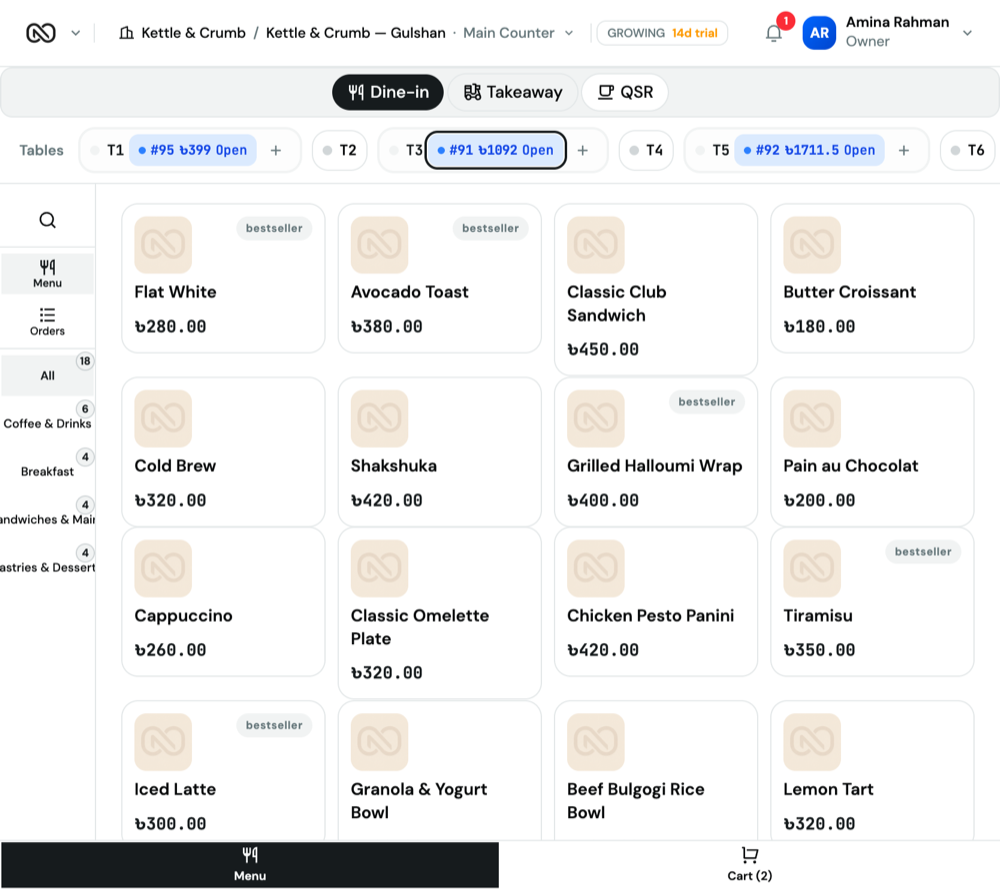
Move a guest to another table, split the bill by item or evenly, and send every course straight to the kitchen screen.
Ring up an order in a few taps, on as many tills as you need, for when the queue reaches the door.
Takeaway orders go to the same kitchen screen as everything else, so none of them are forgotten.
The address, phone number, and delivery fee stay on the order itself, not in a separate notebook.
Five screens, one login, nothing to keep in sync by hand.
Tap items from your menu, put the order on a table or mark it takeaway, and take payment without changing screens. Pause an order and come back to it, split a bill, or give a discount from the same place.
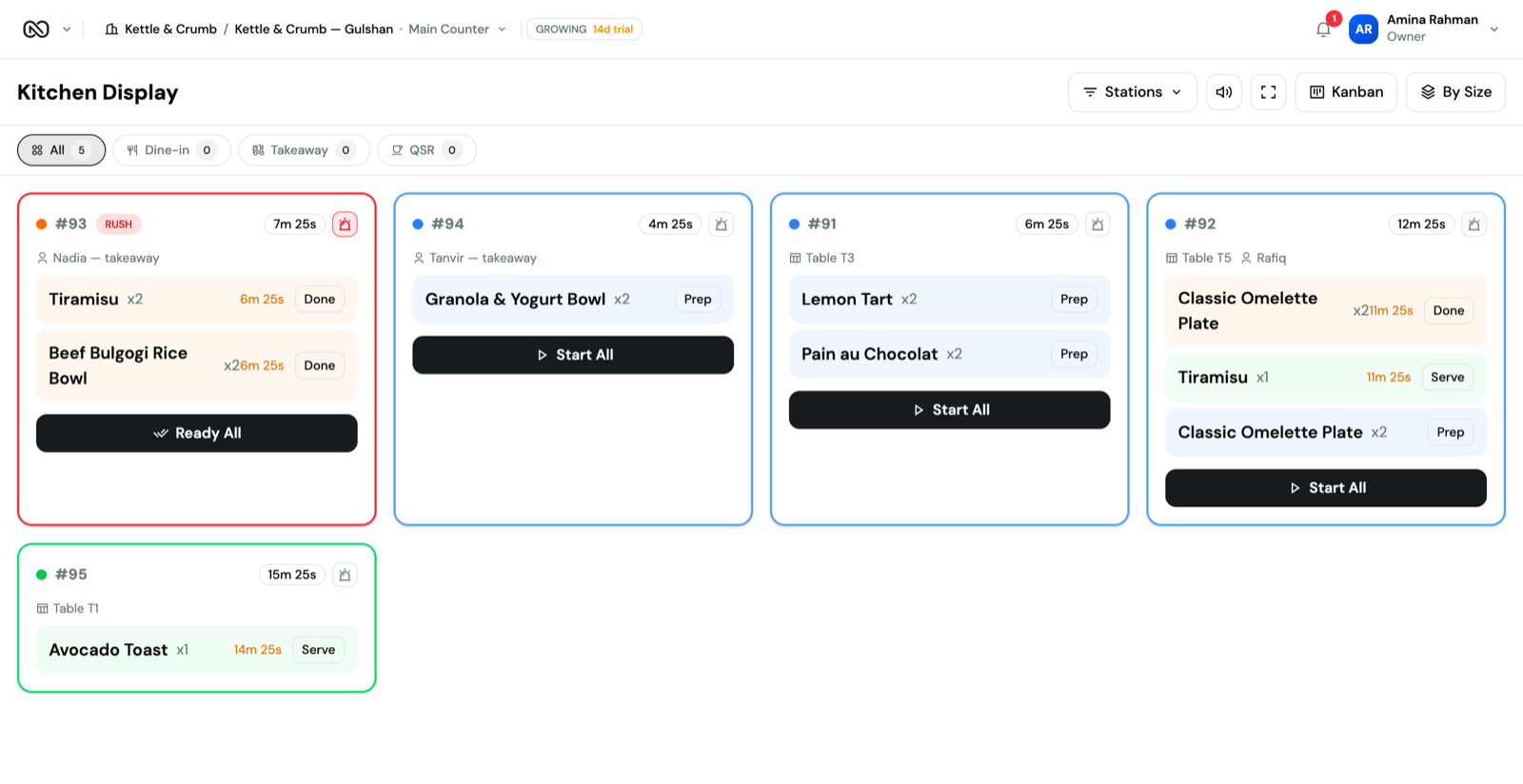
Orders reach the kitchen the moment they are placed, each with a timer, so nothing gets lost under a pile of paper. Mark an item started or done in one tap and every screen updates at once.
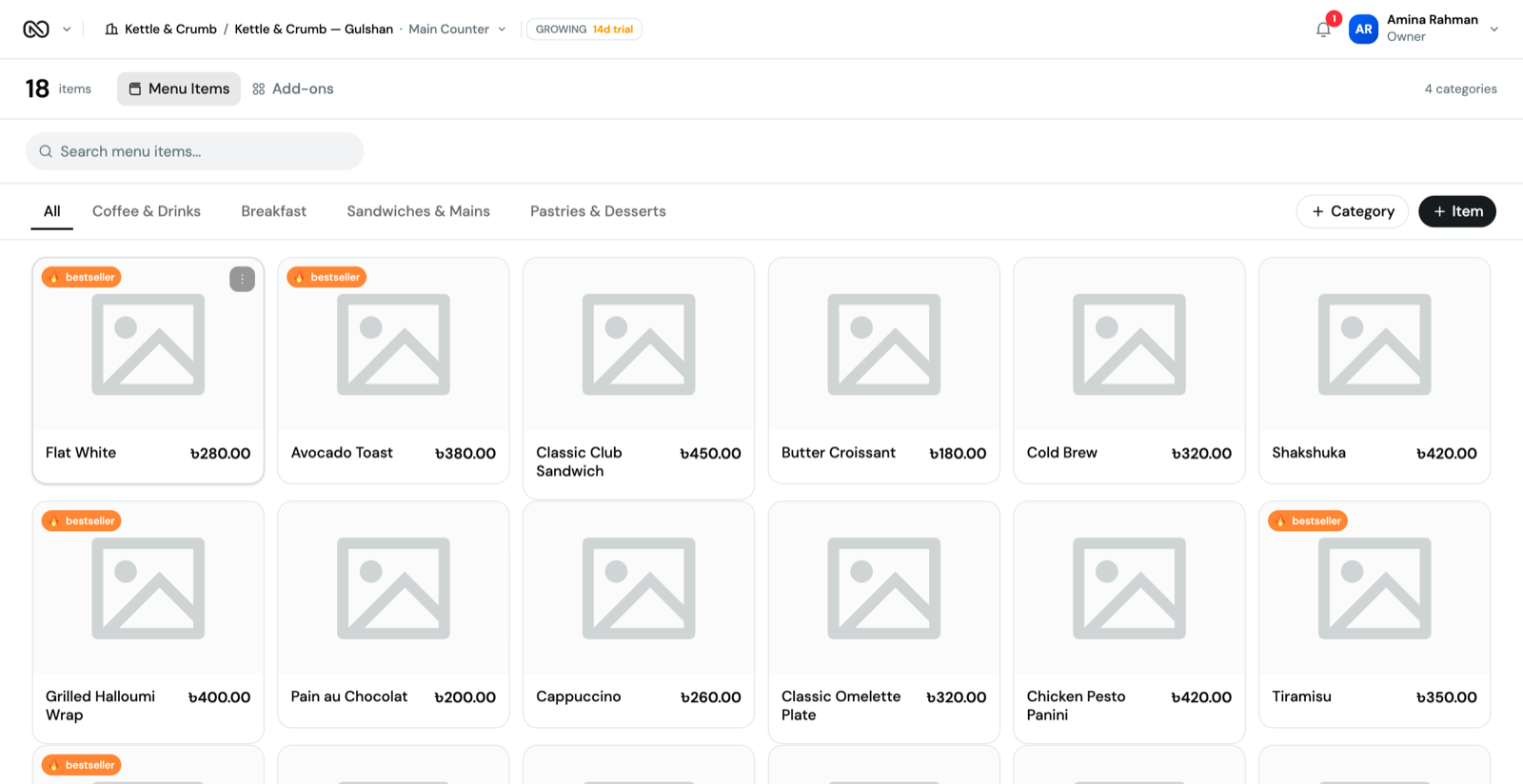
Your categories, items, sizes and extras live in one place. Turn something off at one branch without affecting the others, and every till shows the change straight away.
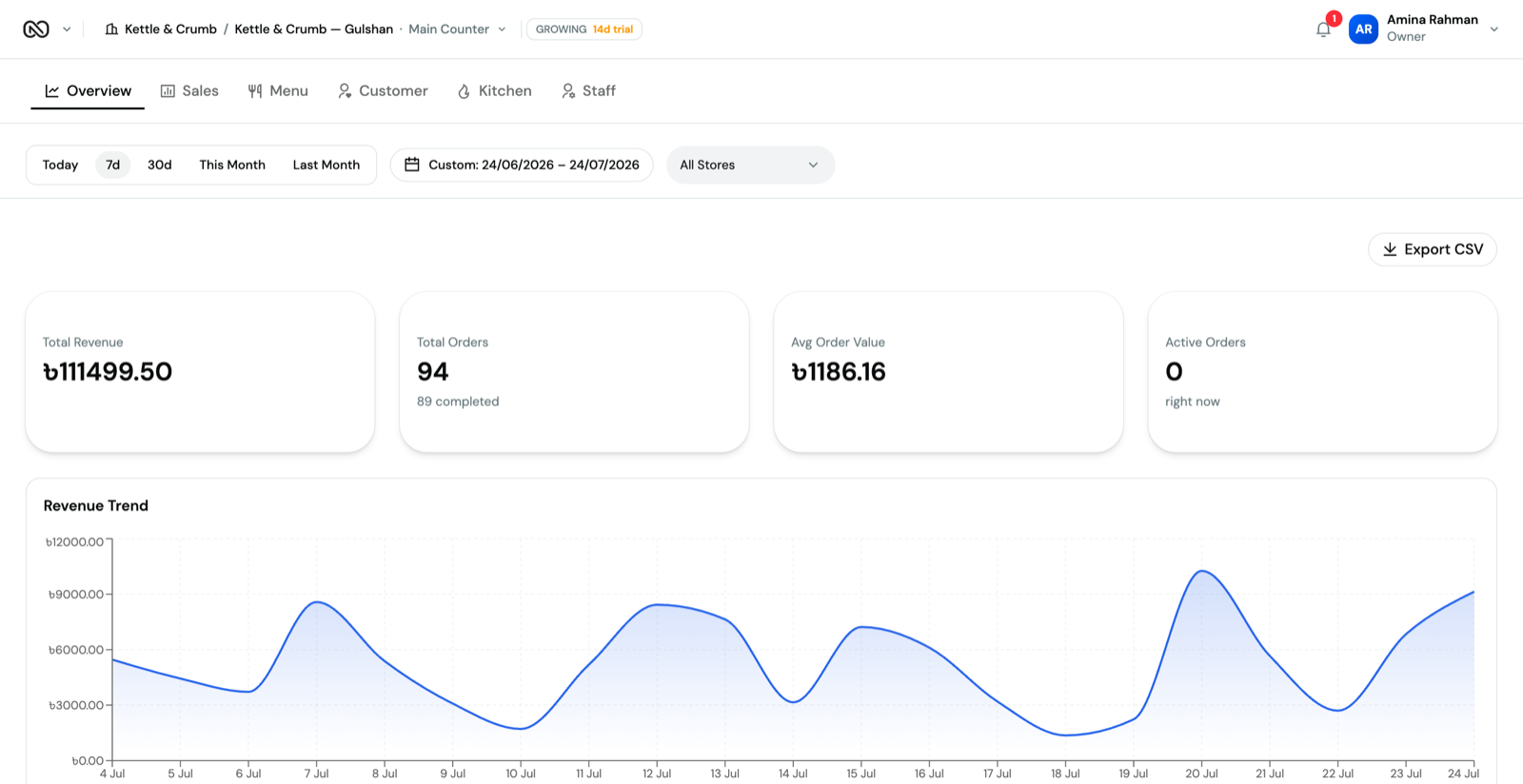
Sales, order counts, and average order value update as orders come in, not at closing time. Pick a date range and a branch to see the trend, along with reports on your menu, customers, kitchen and staff.
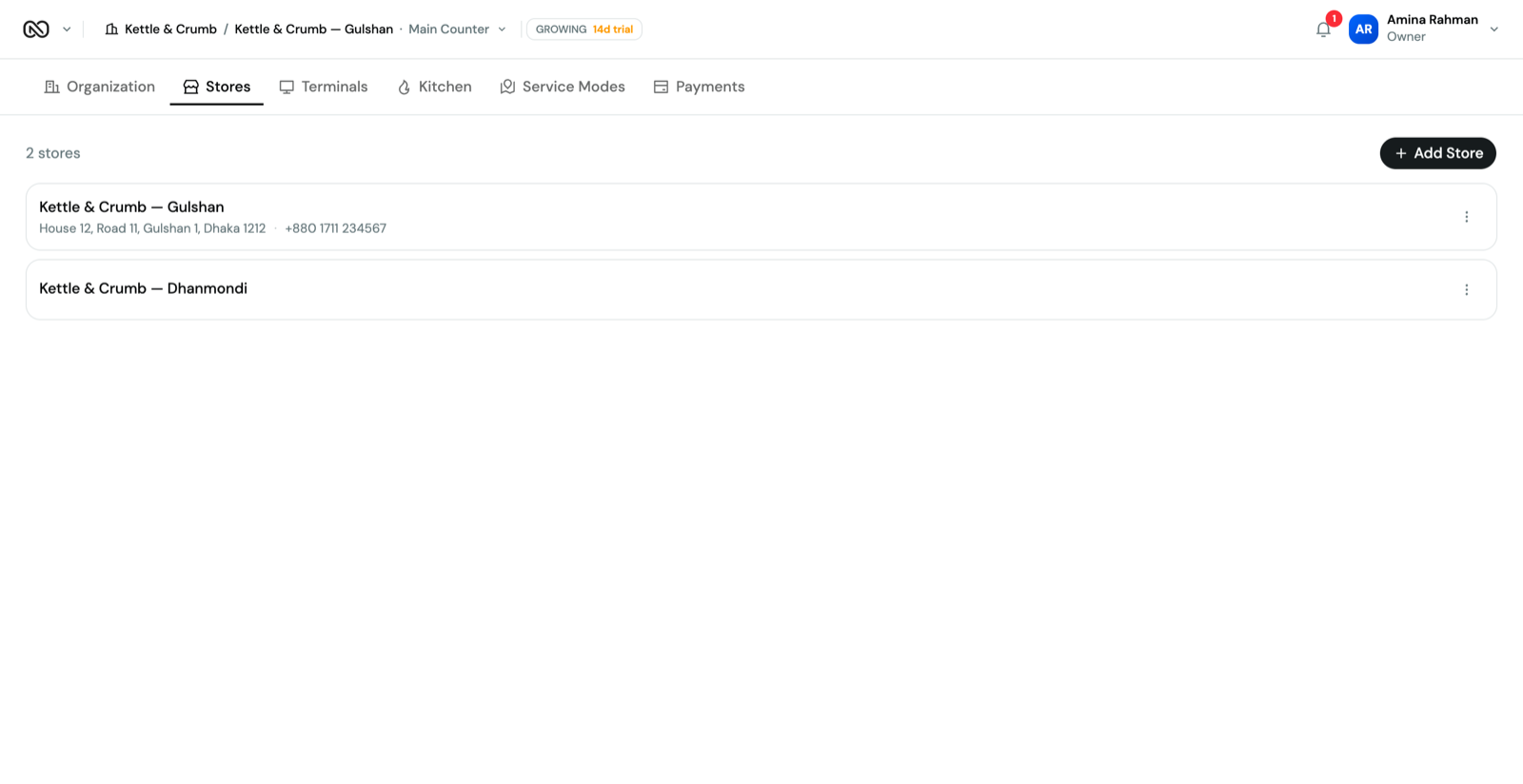
Add a second branch the same way you added the first — nothing to reinstall, no extra licence. Each branch gets its own tills, tables and kitchen stations, and you decide who can see or change what.
Role-based permissions control what each person can see and do, down to individual actions like refunds or menu edits. Every price change, discount, and login is timestamped and tied to a user.
Decide what each person can do, branch by branch — from editing the menu to giving refunds.
Every price change, cancelled order, discount and login is saved with the time and the person who did it.
Your data is encrypted on its way to us, and stays encrypted while we store it.
Limit a till to named staff, so it will not open for anyone else.
For small businesses just getting started
No. ONNO runs in any modern browser — Chrome, Safari, Edge — on a laptop, tablet, or computer you already own. There is no special till hardware to buy or wait for.
ONNO needs an internet connection to take orders and keep every screen up to date. If your wifi is unreliable, keep a phone hotspot as a backup.
Yes. Add a second branch from Settings the same way you added the first — one login, one bill, and separate menus, tables and kitchen stations for each branch.
Setting up your business, first branch, tills and plan takes a few minutes. Most restaurants take their first order the same day — typing in a long menu is usually the slowest part.
Your connection to ONNO is encrypted, you control exactly what each staff member can do, and every price change, discount and login is recorded with a time and a name.
Change plan anytime from Settings → Plan. Your menu, orders and history stay exactly as they are — nothing to type in again.